



Why JavaScript Is Essential to Modern Web Development
JavaScript turns a web page into something people can work with. It lets a viewer filter a video archive, a customer see a quote update, and an editor work with media controls in a browser. Understanding JavaScript helps you decide what belongs in the browser, what the server should handle, and when built-in HTML does the job.
Table of Contents
- Why JavaScript is essential
- Where JavaScript earns its place
- JavaScript beyond the browser
- How to build reliable interactions
- A practical way to learn JavaScript
- Top 5 Frequently Asked Questions
- Final Thoughts
- Resources
Why JavaScript Is Essential
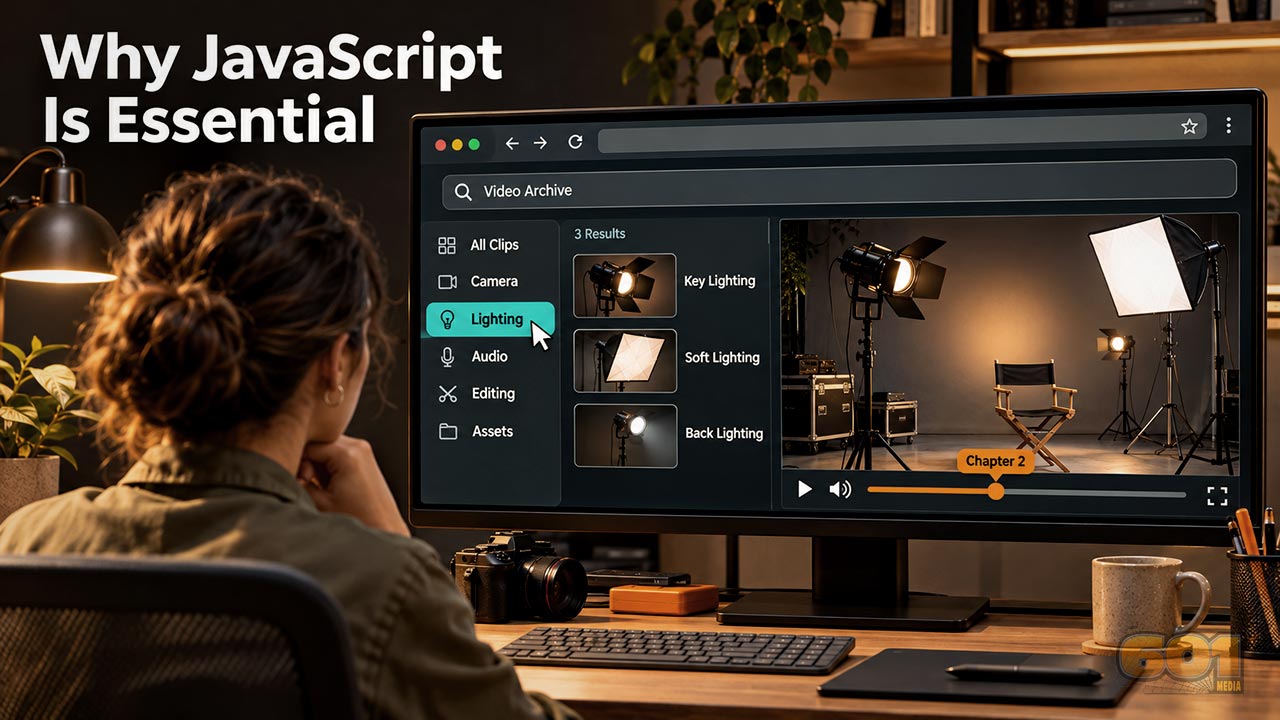
Open a video archive and choose a category. The list changes, the heading tells you how many videos match, and the browser keeps your place on the page. That small interaction illustrates why JavaScript matters. A browser can respond to input, apply a rule, and update part of the screen while the visitor keeps working. On an archive with hundreds of clips, those updates turn a long page into a tool people can use to find a specific asset.
W3Techs reported that 98.9% of the websites it surveyed used JavaScript as a client-side programming language on November 24, 2026. That figure measures adoption across surveyed sites. The individual roles vary. One site may use a small script to improve navigation. Another may use JavaScript throughout a dashboard. For people who build, maintain, or publish on the web, that range is what makes the language worth understanding.
How HTML, CSS, and JavaScript Work Together
HTML gives a page structure and meaning. It marks up headings, links, forms, buttons, and media. CSS controls how those elements look, how they fit on different screens, and how they respond to states such as keyboard focus. JavaScript can act on information available to the browser. It can read a form field, compare two values, remember a selection, or decide which results to show.
Consider a project estimate form on a media production website. HTML supplies the fields for shoot days, editing hours, and deliverables. CSS keeps the labels and inputs readable on a phone. JavaScript can recalculate the estimate as a visitor changes a quantity. If the visitor submits a booking request, the server can check the details and apply the actual pricing and availability rules. Each layer has a clear job.
How a Click Changes the Page
The browser represents a page as a tree of objects called the Document Object Model, or DOM. JavaScript can find an element in that tree and change its text, visibility, or attributes. An event tells the code something happened, such as a visitor activating a button, a form being submitted, or a video reaching its end.
A category filter is a simple example. When the selection changes, an event handler reads the chosen category. It compares that choice with each video’s category and updates which entries appear. It can then update the results count and show a message when zero items match. Trace those steps separately when debugging. A filter that hides the right clips but displays the wrong count has a different problem from a filter that never receives the event.
Where JavaScript Earns Its Place
Forms, Filters, and Data Requests
Useful interactions give visitors feedback while they still have enough context to act on it. A project inquiry form can reveal a deadline field when someone chooses “Rush delivery.” A search field can update a list of results as someone types. A quote calculator can immediately show how an extra revision round affects an estimate. The page should explain changes that matter, such as which new field is required or why an estimate increased.
A page can filter a small list using data it already has. For a larger catalog, it can use the browser’s Fetch API to ask a server for matching entries. The browser sends a request, receives a response, and updates the results area. The visitor stays on the same page while that work happens. An online store can use the same pattern to request sizes available for a selected color.
Think through the time between the request and the response. Two searches can finish out of order, especially on a slow connection. If someone enters “lighting” and then “lighting kits,” an earlier response could overwrite the newer matches. Cancel obsolete requests where appropriate, or track which request is current and accept results only from that one. Also give a failed request its own message and a retry path. “No videos matched” and “We couldn’t load the results” describe different situations and call for different actions.
Video Players and Browser-Based Media Tools
A plain HTML video player can display standard playback controls. JavaScript becomes useful when playback needs to coordinate with the rest of the page. A training site can put a list of chapters beside a lesson. Activate “Color Correction,” and the script can seek to the chapter’s timestamp. As playback moves forward, the chapter list can highlight the current segment. A transcript can follow the same playback position so the viewer can switch between watching and reading.
The Canvas API lets browser code draw graphics such as an animated score overlay or a preview of a lower third. The Web Audio API gives developers tools for processing and analyzing sound, which can support a level meter or an audio visualization. A producer might combine those capabilities in a small browser tool for previewing a graphic with a voice track. The producer can review the timing and share a preview with someone who has access to a browser.
A custom media interface also inherits responsibilities. If you replace a player’s built-in controls, check whether someone can play, pause, seek, and adjust volume by keyboard. Give icon buttons descriptive names that a screen reader can announce. For a simple video embed, the browser’s controls may already cover everything the audience needs. Add custom behavior when it serves a specific task, such as jumping between lessons or checking whether a graphic appears at the right moment.
JavaScript Beyond the Browser
What Node.js Does
Node.js is a runtime that executes JavaScript outside a browser. A developer can use it to build a web server, write command-line utilities, or automate a recurring task. For a production team, a small script might scan a folder of approved exports, read an accompanying list of clip titles and durations, and produce a JSON catalog for a portfolio. The browser can then use that catalog to display the clips and their descriptions.
The environment determines what the code can access. Browser JavaScript can work with the DOM of a page. A typical Node.js script can read files available to its process and has no built-in document tree for a web page. Some logic, such as sorting records or calculating a duration, can work in either environment. WordPress can continue to serve pages through PHP while JavaScript handles interactions in the browser. A WordPress feature can use that combination without running Node.js on the hosting server.
When a Framework Makes Sense
A small feature such as a filter, character counter, or chapter selector can often use regular JavaScript and browser APIs. When an application grows to include many views and controls, a library such as React can help organize the interface into reusable components. Think of a production dashboard where the same job status appears in a summary, a project list, and a detail view. Keeping those views in step becomes part of the design.
Start by looking at how changes move through the application. If a category picker affects one list, the browser’s built-in tools may be enough. If a selection affects a timeline, several panels, and an unsaved work indicator, a shared approach to managing state becomes more valuable. State means the information the application needs to remember, such as the active project or current selection. Frameworks can organize that work. Developers still decide how to render errors, preserve edits, and test the behavior users rely on.
How to Build Reliable Interactions
Start With Native HTML
Build the underlying page so people can reach the content and perform basic actions through ordinary links, forms, and browser controls. Add JavaScript to improve that experience. This approach is called progressive enhancement. An archive can begin with links to individual videos and category pages. A script can add instant filtering on browsers that load it successfully. The links provide a usable route during a script failure.
The same principle applies to forms. HTML attributes can make a field required or tell the browser to check whether an email field resembles an email address. JavaScript can add feedback for rules involving multiple fields, such as checking that a project’s delivery date follows its shoot date. The server should validate the submitted values before saving or acting on them. Browser validation helps the visitor correct mistakes while the form is open. Server validation protects the integrity of the saved record.
Measure Responsiveness
Scripts need time to download and execute. On the browser’s main thread, time spent running a long task can delay other work, including responding to a click or drawing the next frame. A site can look ready while a visitor waits for a menu to open. A dashboard can feel slow while it sorts or redraws too much data after each keystroke.
Google’s web.dev guidance describes how long tasks can contribute to input delay and affect Interaction to Next Paint, or INP. INP assesses how quickly a page provides visual feedback after interactions such as clicks, taps, and keystrokes. Use the browser’s performance tools to record an interaction that feels slow. Look for the work that occurs between the input and the next paint. Try the same interaction on a slower phone or under simulated resource constraints. A workstation that handles video editing can make a costly script feel faster than it does for a typical visitor.
Measure the feature after you change it. For example, if a case-study page includes an interactive chart near the bottom, try loading its code when the chart is needed. Compare how the menu responds during the initial load and check that the chart still appears promptly when someone reaches it. The goal is to give the visitor a responsive page and a usable chart, with measurements tied to both actions.
Test What Happens When Things Go Wrong
Run the same feature with a mouse, a keyboard, and a touch screen. For the video archive, tab to the category control, change the selection, and see whether keyboard focus stays in a useful place. Check that the count is available to people using assistive technology when it is important to understanding the update. Test a category with many results, one with a single result, and one with none.
If the feature depends on a server, slow down the connection and deliberately test a failed request. Confirm that controls recover and that a visitor can retry. For a saved preference, check what happens when local browser storage is unavailable or empty. Repeat those tests after updates to the scripts, theme, or plugins that share the page. A published WordPress archive may load additional code from a theme or plugin, so include the assembled page in your test.
A Practical Way to Learn JavaScript
Build a Filterable Video Archive
Start with a dozen example clips and four categories. Give each clip a title, a category, and a duration. Build the page in HTML first so the titles and links are available. Add an accessible category control and a “Show all” option. Then connect the control to the list with JavaScript. Keep one function responsible for deciding which clips match and another for updating what appears on the page. You can then check the filtering rule independently of changes to the presentation.
Add one requirement when the first version works. Let people search titles within the current category. Decide how the site handles extra spaces, differences in capitalization, and an empty search field. These decisions give you concrete reasons to practice strings, arrays, comparisons, events, and DOM updates. When both filters are active, make the interface show which category and search term produced the current list.
Try loading the clip catalog from a local web server once the static version works. Show a loading message, handle a successful response, and provide distinct messages for an empty list and a failed request. Open the browser’s Network and Console panels while you test. Look at the requested URL, status code, and response before changing the script. That habit helps you determine whether a problem comes from the page, the request, or the data the server returned.
Review AI-Generated JavaScript
If you use an AI coding assistant, give it a narrow requirement for the archive. For example, ask for code that filters titles without changing the category selection, preserves keyboard focus, and announces the result count where appropriate. Read the generated event handler and follow what happens from the moment someone types to the moment the results change. Check whether the code uses the browser’s existing controls and whether it can handle an empty list.
Test the code with the same cases you would use for code written by hand. Try a clip title with an apostrophe, a category with spaces, and two searches entered in quick succession. Confirm that code displaying a title handles it as text. If the assistant adds a dependency, check what it does and whether the site already has a way to perform that operation. Learning enough JavaScript to follow the behavior gives you a concrete basis for accepting, changing, or removing the generated code.
Top 5 Frequently Asked Questions
What is JavaScript used for?
JavaScript powers behaviors such as filtering a catalog, validating form input, requesting data, and coordinating media controls. It also runs outside the browser in environments such as Node.js, where it can support servers, command-line tools, and automation.
Does every website need JavaScript?
No. A site built around articles, ordinary links, and straightforward forms can deliver its core experience with HTML, CSS, and server-side processing where needed. JavaScript becomes useful when the page must respond to input, coordinate controls, or update without a full reload.
Is JavaScript the same as Java?
No. JavaScript and Java are separate programming languages with different ecosystems and typical runtime environments. JavaScript is the scripting language browsers use for web page behavior.
Can JavaScript run on a server?
Yes. Node.js is one runtime that lets developers run JavaScript on a server. It can receive requests, apply business rules, retrieve data, and return responses that a website or application can use.
Should I learn JavaScript before React?
Learn the basics of JavaScript first, especially functions, arrays, objects, modules, and asynchronous code. Practice events and data requests in a small browser project so you can recognize the underlying behavior when you start using React.
Final Thoughts
JavaScript is essential because it gives websites the ability to respond while people work. A publisher can make an archive searchable, a producer can synchronize chapter links with a video, and a business can update a quote as a customer makes choices. In each case, the script earns its place by making a specific task easier, faster, or clearer.
For your next web project, pick one interaction and describe what should happen when it succeeds, when the visitor enters something unexpected, and when a required resource fails to load. Decide what the browser can handle immediately and what the server must verify. Then build the smallest feature that meets those requirements and test it on the devices your audience uses. That exercise teaches you how JavaScript fits into a complete website and gives you a method you can apply to a WordPress enhancement, a production dashboard, or a browser-based media tool.
Resources
- W3Techs, JavaScript usage by website ranking
- MDN, Introduction to web APIs
- MDN, Making network requests with JavaScript
- MDN, Client-side form validation
- Node.js, Introduction to Node.js
- web.dev, Optimize input delay


Leave A Comment