



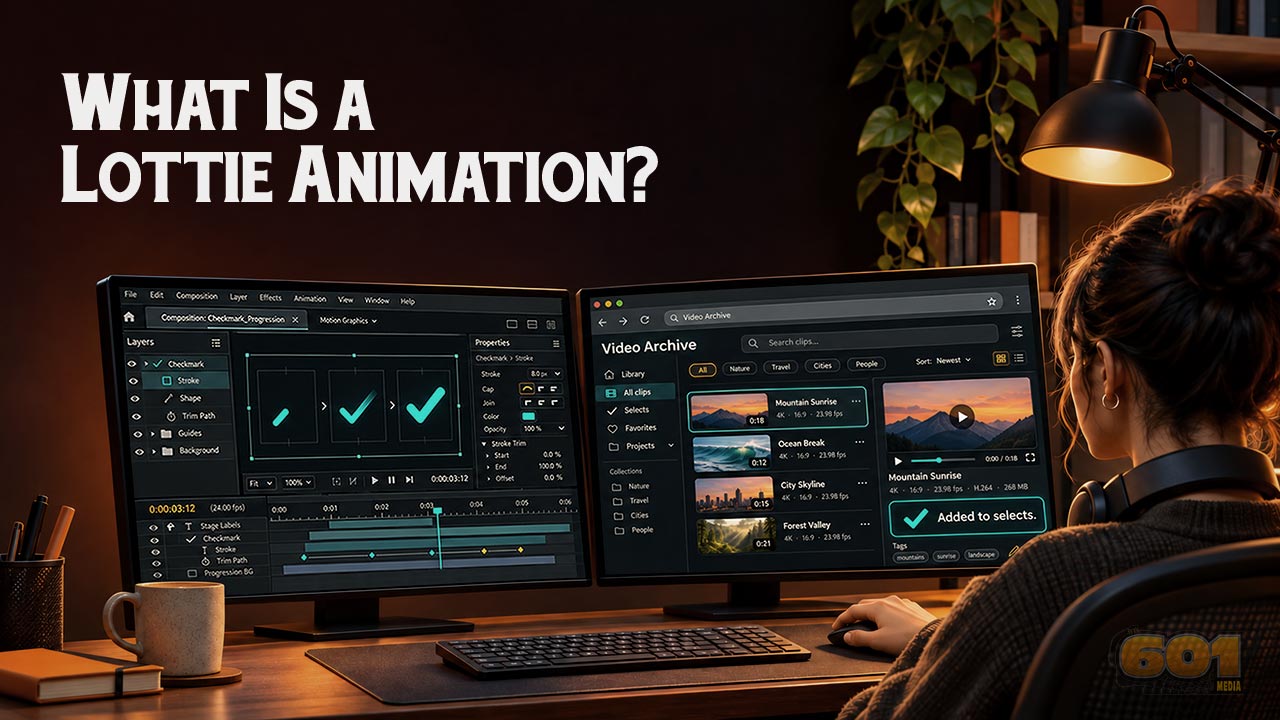
What Is a Lottie Animation? A Practical Guide for Web Creators
A Lottie animation turns motion-design instructions into graphics that a website or app can play and control. This guide explains what is inside the file, how Lottie compares with CSS animation and video, and how to turn an exported motion graphic into accessible feedback on a live website.
Table of Contents
- What Is a Lottie Animation?
- Lottie JSON and dotLottie
- I created this Lottie with Codex AI
- Where Lottie Makes Sense
- How to Create and Export a Lottie Animation
- How to Play Lottie on a Website
- Performance and Accessibility
- Top 5 Frequently Asked Questions
- Final Thoughts
- Resources
What Is a Lottie Animation?
An animation described as data
A Lottie animation is a motion graphic described in data that a compatible player reads and draws on screen. The file can describe shapes, colors, layers, and how properties such as position, scale, rotation, and opacity change over time. A web player reads those instructions, advances the timeline, and draws the graphic at the appropriate moment. A video player follows a different process. It decodes a compressed stream of images, which can include camera footage, rendered effects, and sound.
Picture an outlined circle that fills with color as a checkmark draws itself across the center. The design needs a few paths and changes over time. A Lottie player can draw those paths at the size the page needs and wait until an upload completes before starting the animation. That combination of designer-authored motion and application-controlled timing makes Lottie useful for interface feedback.
How keyframes become motion
A keyframe sets a property at a particular time. Set a circle’s scale to 85 percent at one frame and 100 percent at another and the player can draw the intermediate values. Easing determines how the motion accelerates and slows between those points. Layers let a designer animate the circle and checkmark independently while preserving the relationship between them. A frame rate establishes the timing of the source composition. It gives the player a way to interpret a difference of 15 frames as half a second at 30 frames per second.
Think of this workflow as handing a developer a designed sequence with a timeline. The developer chooses when to call play, pause, or replay. The design file can provide the shape of the motion, while the application supplies the event that makes it meaningful. A timeline can run independently after a page loads, or code can drive the playback position when an interaction calls for tighter control.
Lottie JSON and dotLottie
What a .json file contains
The original Lottie format uses JSON, a plain-text format for structured data. An export commonly describes the composition dimensions and timing, layers, keyframes, and asset references. A player such as lottie-web can fetch that file from a URL or receive animation data directly from JavaScript. A JSON file with vector art can be straightforward to inspect, serve, and troubleshoot. When a design uses bitmap images, check whether your exporter embeds them or writes separate files. Moving the JSON to another folder can break an image reference if the corresponding assets or paths fail to move with it.
Use the original export as your starting point when debugging. If the vector layers are visible but a logo comes up blank, inspect the network requests for missing image files. If the entire animation is blank, verify that the player loaded, the container has visible dimensions, and the JSON URL returns the animation data instead of a site error page.
What a .lottie package adds
The dotLottie specification defines a compressed ZIP-based container with a .lottie extension. Its manifest describes the package, and the package can hold one or more Lottie animations and associated resources. Version 2 can also hold themes and state machines. For example, a production team could package a family of related animations together, provided the intended runtime supports the package features the design uses.
Pick the file format after choosing your player. A player configured for ordinary Lottie JSON needs an appropriate integration to handle a dotLottie package. Check whether the selected runtime supports your package version and any optional features you plan to use. Also measure what reaches the browser. A plain JSON response can receive HTTP compression, while a dotLottie file is already a compressed archive. Comparing the sizes shown on disk alone can give the wrong answer about the actual network transfer.
I created this Lottie with Codex AI to show you what one looks like
Where Lottie Makes Sense
Interface feedback and media workflows
A practical use is showing what changed after a user action. Imagine a browser-based video archive. A producer clicks “Add to selects” on a lighting reference clip. The site sends the request, saves the selection, and updates the visible label to “Added to selects.” A short Lottie checkmark plays once beside that label. If the request fails, the site shows an error and gives the producer a way to retry. The animation celebrates an event that already happened, so a delay or a failed request never produces a misleading success cue.
The same approach can support an onboarding walkthrough, a transition between a menu’s open and closed states, or a small illustration inside an empty search results panel. Choose a specific job for the motion before designing it. A confirmation can draw attention to a new state. An onboarding sequence can show the direction of a gesture. A timeline illustration can show the order in which footage moves from ingest to review. The user should understand the result when the animation ends or when it is skipped.
When to choose Lottie, CSS, GIF, or video
Use CSS for a simple fade, slide, or scale effect applied to an element already on the page. You can often describe that change directly without adding a player or maintaining a separate motion asset. For a designed illustration with several paths moving in sync, Lottie gives a motion designer control over the timing and makes that work easier to hand off. A GIF has a familiar image-based publishing workflow where a target accepts it, although it offers limited playback control in a standard image element.
Use video for a camera shot, a finished 3D broadcast opener, or a sequence where recorded sound and exact rendered effects are part of the deliverable. A chrome emblem with reflections, depth of field, and a moving camera belongs in that category. A simplified emblem that draws on next to a web page heading could work as Lottie. The two deliverables can share the same artwork and visual identity while serving different viewing situations. If you need to choose on performance grounds, compare the actual exported assets at the size and quality you intend to ship.
How to Create and Export a Lottie Animation
Design for the destination
Start with a small composition and a single job for the motion. For a confirmation badge, use a circle and a checkmark built from shape layers. Give each layer a meaningful name and set keyframes to draw the mark, ease it into place, and settle on a clearly recognizable final frame. View the motion at the size it will appear on the web page. A line weight that looks balanced in a large preview may become faint when the badge is displayed at 24 pixels.
After Effects is one authoring option. Bodymovin provides an export path to Lottie JSON, and the LottieFiles After Effects extension documents export to both Lottie JSON and dotLottie. Decide which browser player will run the result before committing to a complex design. Compare the source timeline against the actual export, especially if the composition relies on raster assets, masks, text, or expressions. Support varies across export paths, players, and rendering modes. For text that carries information such as a status message, keep that wording in the surrounding HTML where the application can update it and assistive technology can read it.
Export a small pass and compare it in the player
Do a test export as soon as the main visual is ready. Open it in the intended player and check the first frame, the frame where the main change happens, and the final hold. Viewing the rendered end state catches problems that can pass unnoticed in an endlessly looping preview. Check the stroke width, any image references, and the alignment of overlapping paths. If an effect changes or disappears, isolate the layer responsible and try a simpler construction, then export the same short pass again.
Before delivery, agree on the trigger and the expected end state with the developer. For example, a confirmation could play once when the server accepts a request, then remain on the completed frame until the clip changes. Let the developer know whether the animation expects to start on a transparent frame and whether it should reset before replay. Keep the authoring composition for revisions and hand over the tested export used by the site. Record which player and renderer you used for review so another person can reproduce the result.
How to Play Lottie on a Website
Set up the browser player
A browser needs a player to turn a Lottie export into a drawing. For a JSON animation, lottie-web documents a loadAnimation() method. It takes a container, a renderer, the file path or animation data, and options such as autoplay and looping. The returned instance exposes playback methods such as play() and pause(). A simple graphic can start with the SVG renderer. If the player supports the artwork in another rendering mode, compare the result on the real page before choosing which one to ship.
Reserve the layout space before the animation loads so the surrounding text and controls stay in place. Test the deployed URL and make sure the player can reach any separate assets. When the animation and website live on different origins, verify that the asset server permits the browser to fetch the files as required by your setup. For an event-driven checkmark, keep autoplay and looping off and hook playback into the success handler. Leave the readable status visible if the animation fails to load or the script arrives late.
Add it to WordPress
A WordPress implementation can use a block, a plugin, or a custom integration with a compatible player. For an existing builder-based site, first check which animation formats that builder accepts and whether it exposes the playback trigger you need. A looping decoration and a confirmation tied to a form response have different integration needs. For a custom approach, load the player script once, provide the animation container in the page, and initialize the instance after the container exists. Reuse the same player script when several animations appear on one page.
Verify the published page in a logged-out browser session. The editor preview may load scripts in a different order from the cached public page. If the graphic works in the editor but disappears on the public site, inspect the browser console and network panel. Look for an unavailable asset URL, a player initialized before the container exists, or a script that loads after the code that calls it. Run the same checks on a narrow screen to verify usable spacing and a visible fallback.
Performance and Accessibility
Measure download and playback separately
A small transfer does not tell you how expensive the animation is to draw. Numerous paths, dense keyframes, bitmap layers, and several simultaneous animations can increase rendering work. The player itself also adds download and execution cost. Measure a page with the animation enabled and compare it with the same page using a static graphic. Check transferred bytes, how the layout behaves as content loads, and whether scrolling and clicking remain smooth while the animation runs. A real phone gives you a better sense of the experience than relying only on a fast workstation.
If the page struggles, start by reducing the number of moving layers or simplifying point-heavy shapes. Try playing the motion once at the moment it helps the user and leaving it on its final frame. For animations farther down the page, consider deferring initialization until they are needed. Recheck the look and the transfer after each meaningful change so you know which changes helped.
Keep the message available with motion off
Respect the user’s reduced-motion preference. Your page can detect prefers-reduced-motion: reduce and skip the animation or display a still version. A JavaScript player needs its own playback decision if it already runs independently of CSS. In the clip archive example, keep the same “Added to selects” label and show a stationary checkmark. A suitable live status region can announce a dynamic message to assistive technology when focus remains on the control that triggered it.
Review automatic loops separately. WCAG 2.2 Success Criterion 2.2.2 calls for a way to pause, stop, or hide automatically starting moving content when it lasts more than five seconds and appears alongside other content, with an exception for essential motion. Test the interface using keyboard controls and with reduced motion turned on. Also test a failed animation request. If users can still tell what happened and complete the same task, the page has a usable fallback.
Top 5 Frequently Asked Questions
Is a Lottie animation a video?
A Lottie animation is playback data for a compatible renderer. It describes artwork and timing. A video file stores an encoded stream of images and can carry audio.
Do I need After Effects to use Lottie?
You can play an existing licensed Lottie file with a compatible player without authoring it in After Effects. If you create your own animation, choose an authoring tool that can export the format your player accepts.
What is the difference between Lottie JSON and dotLottie?
Lottie JSON is a plain-text animation description. A dotLottie package is a compressed archive that can carry Lottie animations and related resources in one file. Choose a player that supports the format you publish.
Can I control a Lottie animation with JavaScript?
Yes. A web player such as lottie-web exposes playback controls. Your application can use these controls to play an animation when an upload succeeds, pause it, or replay it when the user asks.
Are Lottie animations always smaller than GIFs or videos?
File size depends on the artwork, embedded images, keyframes, compression, and output settings. Measure the total bytes the browser receives and test playback on a representative device before choosing a format.
Final Thoughts
Lottie’s advantage is that the site can decide when a designed motion graphic plays. That makes it a strong fit when motion communicates the result of an action, helps someone follow a sequence, or shows a change in an interface. For a first project, take a step that already has a clear outcome, such as saving a clip to a collection. Design a brief confirmation, export it, and test the asset in the same browser player that will run it in production.
Review the complete interaction alongside the graphic. The status should appear at the right time, the layout should remain stable, and the confirmation should make sense with playback disabled. Those checks show whether the motion serves the people using the page. Keep the source composition for future edits and ship the tested export with the playback settings you verified. For productions that depend on recorded sound or rendered camera work, deliver a video and use Lottie for any accompanying web interface motion.


Leave A Comment