



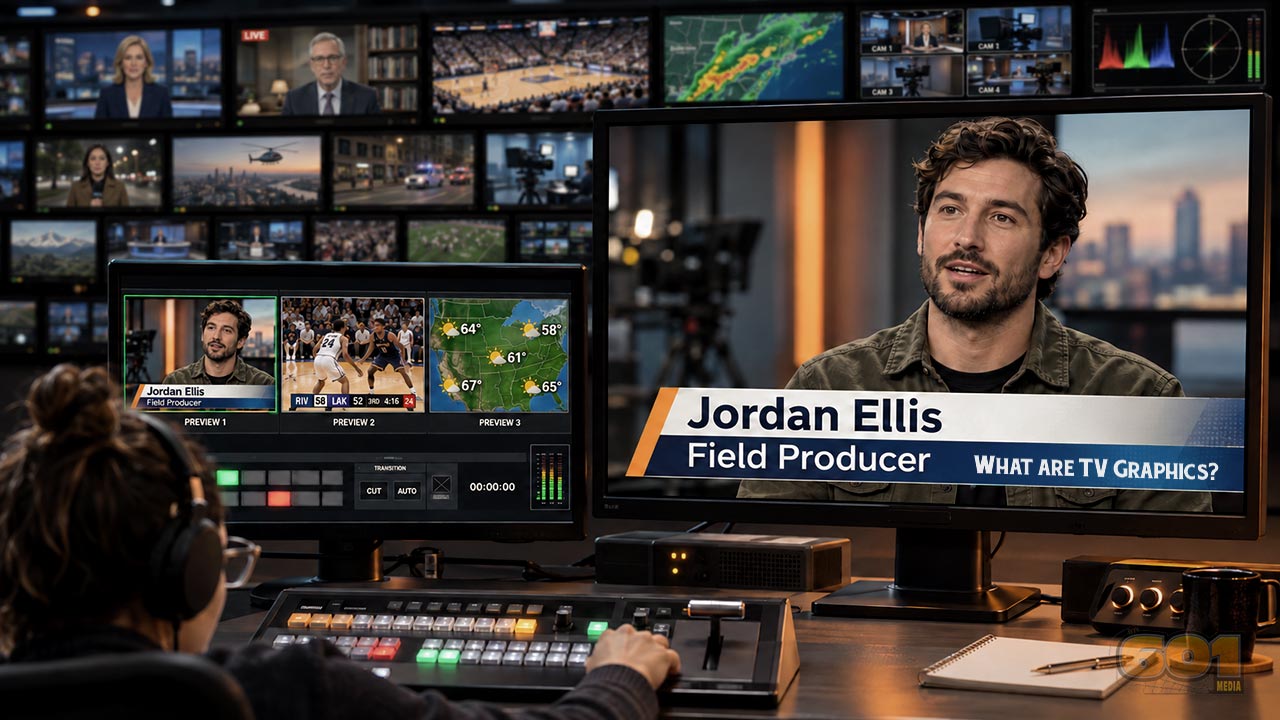
What Are TV Graphics?
TV graphics are the names, scores, maps, titles, and other visuals that help viewers follow a show. Learn what each type does, how graphics get on screen, and how to build a package for an independent broadcast or livestream.
Table of Contents
- What TV graphics do
- The most common types of TV graphics
- How TV graphics get on screen
- Designing TV graphics people can read
- Building a graphics package for an independent show
- Common problems and how to fix them
- Top 5 Frequently Asked Questions
- Final Thoughts
- Resources
What TV graphics do
Definition and purpose
TV graphics are visual elements that a production adds to the screen to identify people, explain events, organize information, or establish the identity of a show. A guest name beneath an interview, a score beside a game clock, and a full-screen weather map all qualify. Some stay on screen for a few seconds. Others remain visible for most of a program. Some sit over live video, while others replace the picture entirely. The same design principles apply whether the show goes out over broadcast television, streams on YouTube, or lives in an on-demand archive.
What viewers learn from them
Imagine joining a local basketball broadcast halfway through a possession. The camera shows the action, and the announcer explains the play. The scorebug tells you who is leading, how much time remains, and which period you are watching. Together, those elements answer different questions at the same moment. A useful graphic gives viewers information they would otherwise have to wait for, infer, or look up. That principle applies to a documentary map, a cooking-show ingredient card, and a livestream countdown just as readily as it applies to sports.
Where graphics belong
Every graphic takes up space, time, and attention. A name strap makes sense when someone first appears, and showing it again can help viewers who arrive later. A statistic during a decisive play may work better in the replay, when the audience has enough time to absorb it. Before adding a graphic, ask what the viewer should understand at that point in the show. The answer helps decide what the graphic says, where it sits, how long it holds, and when it should leave.
The most common types of TV graphics
Lower thirds, straps, and bugs
A lower third occupies part of the lower area of the frame, often to identify a speaker, a location, or a topic. A basic interview lower third usually has a name on the first line and a role or affiliation on the second. A strap is another common term for an on-screen banner. A bug is a small overlay that often stays in a corner, such as a station logo. A scorebug is a specialized version that puts game information where viewers can find it at a glance. A ticker or crawl moves information across the screen and needs enough space and time for viewers to read it.
Full-screen graphics and explainers
A full-screen graphic takes over the picture, which makes it suitable for information that deserves the audience’s full attention. Common examples include standings, election results, maps, schedules, and side-by-side comparisons. Treat the main number or location as the visual starting point. Add a heading that tells the audience what they are looking at, and label the units and time period wherever those change the interpretation. A chart labeled “Attendance” leaves open whether the total covers one match or an entire season. A short label can settle that before the presenter speaks.
Openers, bumpers, and replay transitions
An opener introduces a program or segment and establishes its visual identity. A bumper is a short transition that can mark a break or return. A stinger is a brief animated transition, sometimes paired with sound. In a sports production, a replay transition signals that the next shot shows an earlier play. The audience should recognize that cue before it mistakes replay footage for live action. Keeping the replay treatment familiar across a season also means the show can communicate the change quickly without repeating a long explanation.
How TV graphics get on screen
Edited video and motion graphics templates
In post-production, an editor places the graphic above the footage on the timeline and adjusts its timing against the dialogue or action. A designer can supply a finished animation with transparency or build a reusable motion graphics template. For example, Adobe documents how After Effects authors can supply templates that Premiere editors customize. An interview template can expose the guest’s name and title while preserving the font, margins, animation, and branding. The editor can then time the graphic to the introduction, preview it against the final shot, and fix a spelling error before export.
Live production and the graphics operator
A live graphics operator prepares templates and brings them on and off air in coordination with the director. In a simple stream, the same producer might switch cameras and operate graphics from a single workstation. In a larger production, a dedicated operator may build the lineup from the show rundown and take cues over intercom. Each item needs a predictable trigger, such as the host introducing the guest or a return from break. Previewing the next graphic gives the operator time to catch the wrong guest, a stale score, or a line of text that runs outside its box.
Alpha, key, and fill
A graphic needs a way to tell the production system which parts should reveal the picture beneath it. An alpha channel carries transparency information inside a supported file or image stream. Some live switcher setups carry that information separately. In a key-and-fill workflow, the fill carries the visible graphic and the key tells the switcher how opaque each part should be. That allows the switcher to preserve soft edges and shadows over footage. Blackmagic’s ATEM manual illustrates this arrangement. If edges look wrong, check that the graphics output and the switcher agree on how the transparency is handled.
Browser-based overlays and live data
A web page can render an overlay with HTML, CSS, and JavaScript. OBS Studio’s Browser Source can load a local file or a URL, so an independent producer can test an overlay without a dedicated graphics server. A static guest card can use fixed text. A live scoreboard can receive updates from an operator panel or data feed. Plan what happens when the connection stalls, the page reloads, or the clock stops updating. Keeping the last confirmed score may be suitable for a brief interruption, while hiding a stale game clock can keep the overlay from giving viewers the wrong impression.
Designing TV graphics people can read
Contrast, spacing, and screen size
Review the graphic against bright, dark, and busy shots. White text that reads well over a dark jacket can disappear over a window. A solid or translucent backing can keep the label legible across cuts. Give the most important line the largest type and leave enough space between lines to make their relationship clear. Test the final output on a television at a normal viewing distance and on a phone at its usual playback size. If the guest’s role disappears when the video is small, shortening it often works better than shrinking the type.
Safe areas and competing overlays
Keep essential information away from the outer edges of the frame. As a reference, EBU R 095 recommends a graphics-safe inset of 5 percent on each edge for 16:9 television production. In a 1920 by 1080 frame, that translates to 96 pixels left and right and 54 pixels top and bottom. A broadcaster or platform may specify different placement requirements. Check for collisions with closed captions, replay labels, and other graphics in the actual output. If you deliver vertical clips too, reposition the graphic for the new frame and test it with the platform’s interface visible.
Timing, motion, and reading
Animation can tell viewers that a segment has changed or guide their eyes to a new number. For information that must be read, give the text a stable hold after the entrance animation. Start by reading it at a natural pace while watching the actual picture. An unfamiliar surname, a long job title, or a set of figures can take longer than the designer expects. On a live show, rehearse what happens when the host moves to the next topic before a graphic has finished. The crew needs to be able to clear it and keep the output aligned with the conversation.
Building a graphics package for an independent show
Start with a specific episode
Take a two-guest interview as an example. The first episode might need a show opener, a guest lower third, a topic card, and an end card. Start with the rundown and put each graphic next to the cue that calls for it. Write the actual names and titles before designing the template. Use the longest name and affiliation as a stress test. Also check how a one-line name looks when there is no title. Those two cases can reveal issues with alignment and spacing that a short placeholder never exposes.
Design the controls the operator needs
Agree on which fields can change during production and which belong to the approved design. A guest template may need editable name and role fields, along with clear controls to show and clear the overlay. A scorebug may also need actions for updating scores, correcting errors, and moving to the next period. When one person operates cameras, audio, and graphics, easy recovery matters. Rehearse a correction while switching between shots. If the producer struggles to clear a wrong name quickly, simplify the controls before adding more graphics to the package.
Verify the recording and the handoff
Run a recording through the same switcher or streaming software you will use on show day. Watch what happens when the first lower third appears, the camera changes, and the overlay leaves. Check that captions remain readable and the graphic disappears when expected. If a client wants a version without graphics for later localization or repackaging, plan to capture a clean feed as well as the program output when the production system supports it. Keep the templates, approved spellings, and export settings with the project so the next episode can use the same package.
Common problems and how to fix them
Accurate data in the wrong context
A score can be correct for the wrong game. A guest’s name can be spelled correctly on the wrong camera. A chart can use accurate figures and still mislead if the date range is missing. Review each graphic both as a standalone item and as part of the shot where it will appear. In a live rundown, label items in terms the crew can recognize quickly. “Second guest lower third” tells an operator less than the guest’s name. Use the preview image and show cues together before taking the graphic to air.
A package that works only on one shot
A title can look balanced in the mockup and land over somebody’s hands during a demonstration. A sponsor logo may share a corner with the scorebug. A full-screen panel might need to hold through an explanation even though the source animation was built to play once. Test the same graphic on a close-up, a wide shot, and the busiest footage you expect to use. A left and right version of a lower third can handle changing subjects without forcing an operator to drag it around the screen during the show.
Top 5 Frequently Asked Questions
What are TV graphics?
TV graphics are visual elements added to a television program, stream, or edited video. They identify people and places, explain information, display live data, and help viewers recognize a show or segment. Lower thirds, scoreboards, maps, and title sequences are common examples.
What is the difference between a lower third and a scorebug?
A lower third typically appears in the lower part of the picture to identify a person, place, or topic. A scorebug is a compact overlay that shows game information such as the score, clock, and period. A lower third usually appears briefly, while a scorebug often stays visible during play.
Are TV graphics the same as motion graphics?
TV graphics describe the visual elements used in a program. Motion graphics describe design elements that animate over time. An animated show opener can be both. A static station logo or a still results chart can be a TV graphic without using motion.
How are graphics added to live television?
A graphics operator or producer cues an overlay from a graphics system or streaming application. The production system combines the overlay with the program picture. In a separate key-and-fill setup, the fill carries the graphic and the key supplies its transparency information.
Can a small production create TV graphics without a dedicated character generator?
Yes. An editor can add graphics on a video timeline, and an independent live producer can use tools such as OBS Studio with text, image, or browser sources. The tools you need depend on the graphic’s complexity, who will operate it, and whether it must update live.
Final Thoughts
Start with the viewer’s question
Good TV graphics make a show easier to follow. In an interview, that might mean identifying a new voice at the right moment. In a game, it means giving people an accurate score without drawing their eyes away from play for too long. When you build a package, walk through one episode from the audience’s point of view. Look for the moments where a title, chart, or transition would make the picture clearer. Then rehearse those moments from the operator’s point of view, including a mistake and its correction. A package that works in both situations is ready to support a real show.


Leave A Comment